Booking screen for meeting rooms: a digital room display without login
A TV or tablet outside the meeting room that shows today's bookings in real time solves an everyday irritation. People stop knocking on the door, reception no longer has to answer "is it free right now?" and visitors find the right room without help. Here we describe how to set up a booking screen with Roombook, at no extra cost and without buying special hardware.
Why a booking screen?
Without a visible display screen a familiar pattern appears. People open the door in the middle of a meeting to see whether the room is free, spontaneous meetings are booked verbally without being registered, and reception or the admin becomes a manual booking system.
A digital booking screen outside the meeting room gives you this:
- Fewer interruptions. Everyone can see straight away whether the room is free or when it becomes free.
- Up-to-date information. The screen updates automatically, so nobody sees old data.
- A good first impression. Visitors and customers see that the premises are in order.
- No login on the screen. The open link needs no session and can run around the clock.
- All rooms in the same view. One screen in reception can show all rooms side by side.
Which hardware suits?
Roombook's display mode is an ordinary web page. A device with a modern browser and an internet connection is enough, so you do not need to buy special hardware for room displays.
The most common choice. Mount it in a wall bracket by the door and leave the charging cable plugged in, so you do not have to think about the battery.
A Fire TV Stick, Chromecast with Google TV or similar gives you a full-screen browser. Works well in reception.
A 10 to 13 inch screen with a Raspberry Pi or Intel NUC. Good for fixed installations in the corridor.
Open Chrome in full screen (F11) and set the power mode to never sleep. Free if you have one to spare.
Setting it up, step by step
-
Create a Roombook account
Register your organisation at app.roombook.se/signup.html and add your rooms. The free plan is enough for testing.
-
Find the display key
Log in as admin and go to User management. There you will find "Display link". Copy the whole address with
?key=XXXXX. -
Open the link on the screen
Paste the link into the browser on the TV, tablet or computer. You do not need to log in, because the key in the address gives read-only access.
-
Turn on full screen and turn off sleep mode
Turn on full screen (F11 in Chrome and Edge, or "Add to Home Screen" on an iPad). Turn off the screensaver and automatic lock in the device's settings.
-
Mount the device
Put the tablet in a wall bracket by the door, or point the TV towards the corridor. The screen updates automatically every 30 seconds, so no further setup is needed.
What is shown on the screen?
Roombook's display mode shows today's date and your rooms in columns, in the same way as the calendar overview for logged-in users but read-only.
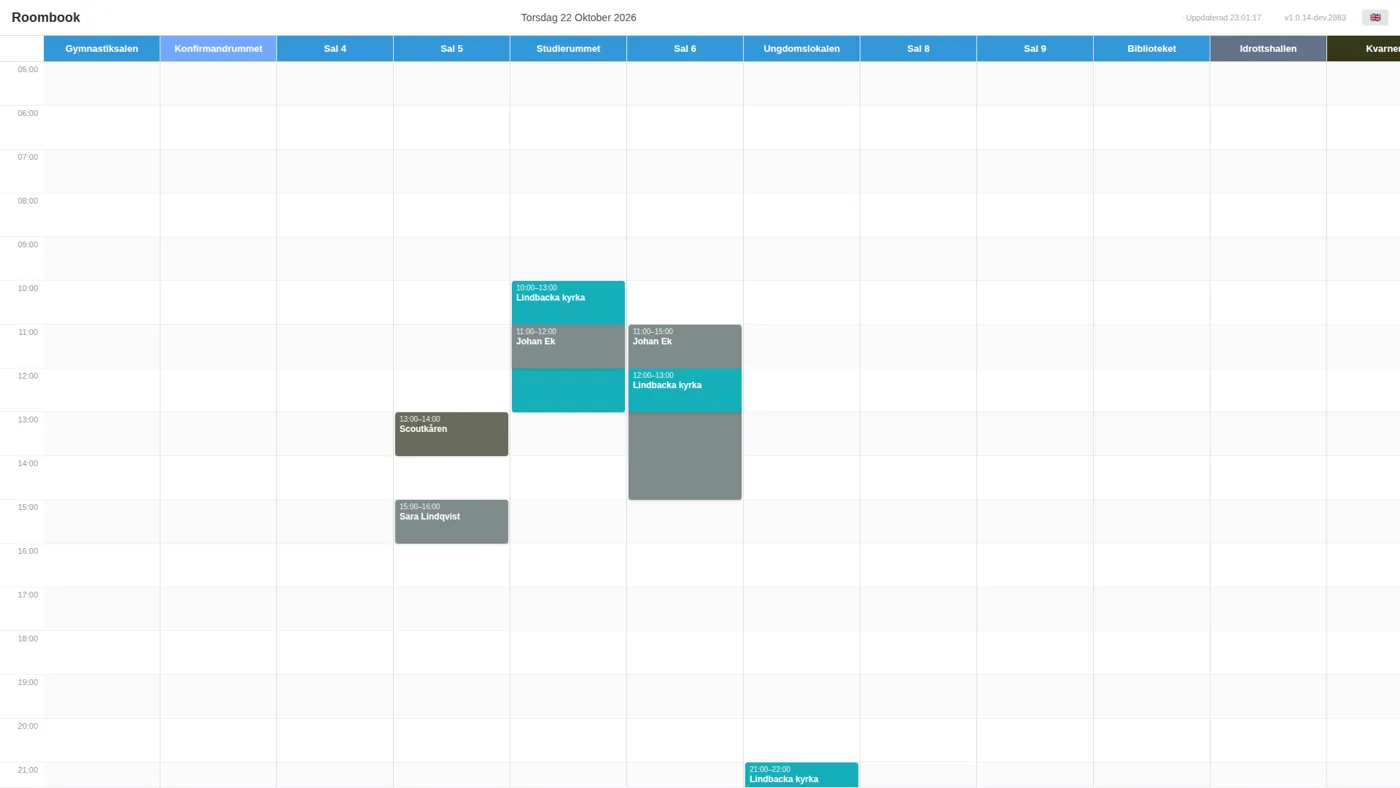
Each room is shown with today's bookings as time blocks. A red line marks the time of day, so you can see at once whether a room is free right now or when it becomes free. The time scale runs from early morning to late evening and is the same for all rooms.
Practical tips
One screen per room or a shared screen?
Both work with Roombook. A display link can show all rooms, which suits a screen in reception. If you want a screen at each room you choose which rooms each screen should show. Most organisations still tend to prefer a combined view.
Private bookings are not shown
If the user has marked a booking as private, it is shown as "Busy" on the booking screen, with no title or participants. Sensitive meetings such as interviews and board discussions are thus hidden automatically.
The link does not change
The display key belongs to your account and only changes if an admin creates a new one. You do not need to change anything on the screens when bookings are added or changed.
Does it work without a network?
The page needs an internet connection to fetch new bookings. If the connection drops the screen shows what was last fetched and tries to reconnect automatically when the network is back.
Cost
Display mode is included in all Roombook plans, even the free plan. It costs nothing extra to set up one or more booking screens. You only pay for the plan: free up to 2 rooms, and after that 250 SEK/month for unlimited rooms. There is no lock-in.
If you also want to show images and welcome texts of your own on the screen there is the add-on Lobby screen.
Try Roombook for free
Create an account, add your rooms and open the display screen on the tablet. It takes less than 10 minutes.
Create a free account Read more about RoombookFrequently asked questions about booking screens
What hardware do I need?
Any device with a modern web browser works, for example an old iPad, a TV with a Chromecast, a small monitor with a mini PC or a laptop in kiosk mode. No special hardware is needed.
Does the screen update automatically?
Yes. Roombook's display mode fetches new data from the server every 30 seconds. Nobody has to reload the page, and no scheduled jobs are needed.
Is a login required on the booking screen?
No. The screen is opened with a unique key in the address, with no login and no password. The link is copied from User management in Roombook and is valid until an admin revokes it.
Can the screen show several rooms at once?
Yes. The display view shows the rooms side by side, so a single screen in reception is enough to show the occupancy of all rooms.
Does the booking screen cost extra?
No. The feature is included in all plans, even the free plan. There is no extra licence per screen.